How to import a QIF file into Banktivity
Use the ProperConvert app to convert your transaction files to the QIF format that Banktivity imports.
When the QIF file is created, switch to Banktivity and import created QIF file. Before importing, make sure to back up your data. To import a QIF file, select File, then Import transactions. Then click 'Import File' and select the created QIF file.
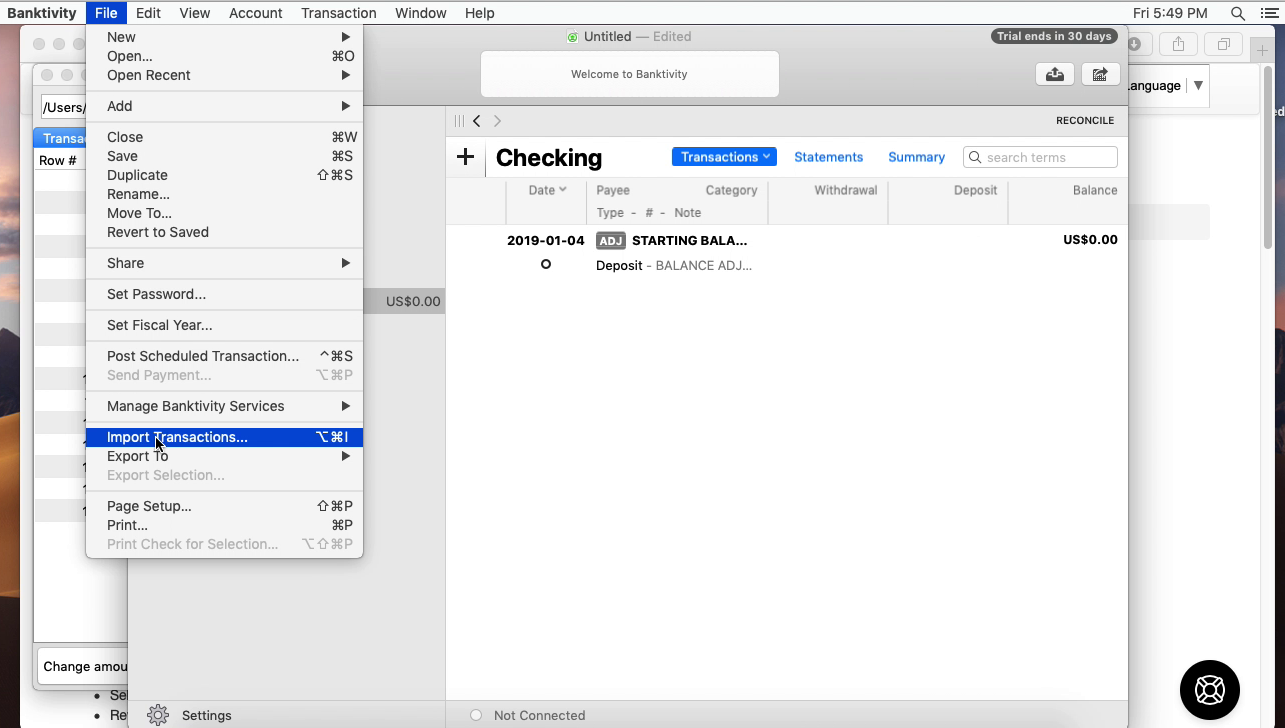
Select a Quicken account to import.
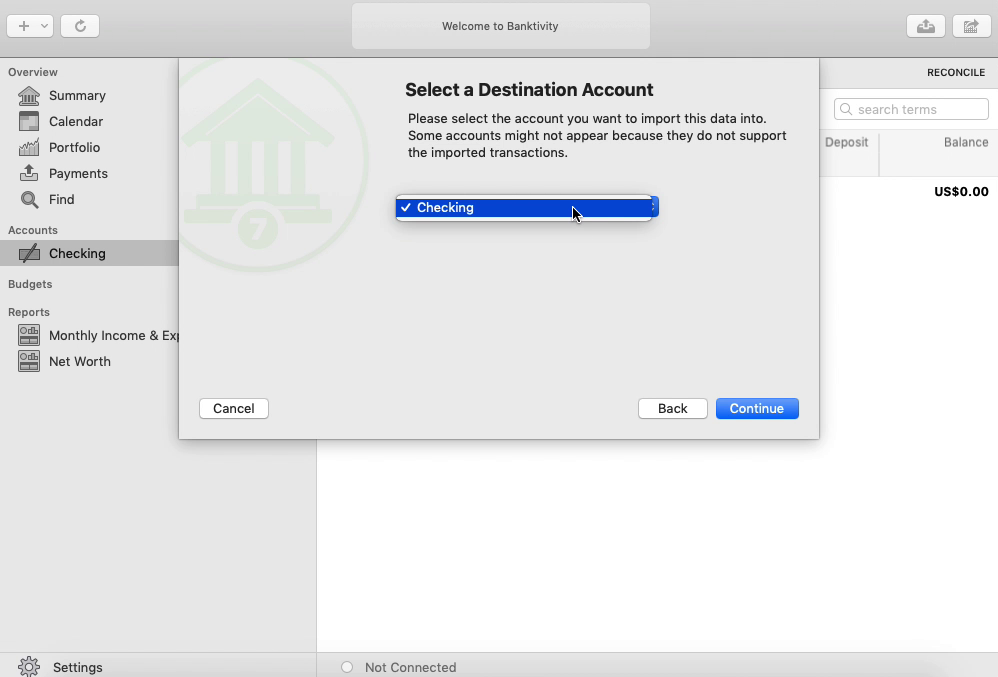
Then click the 'Continue' button.
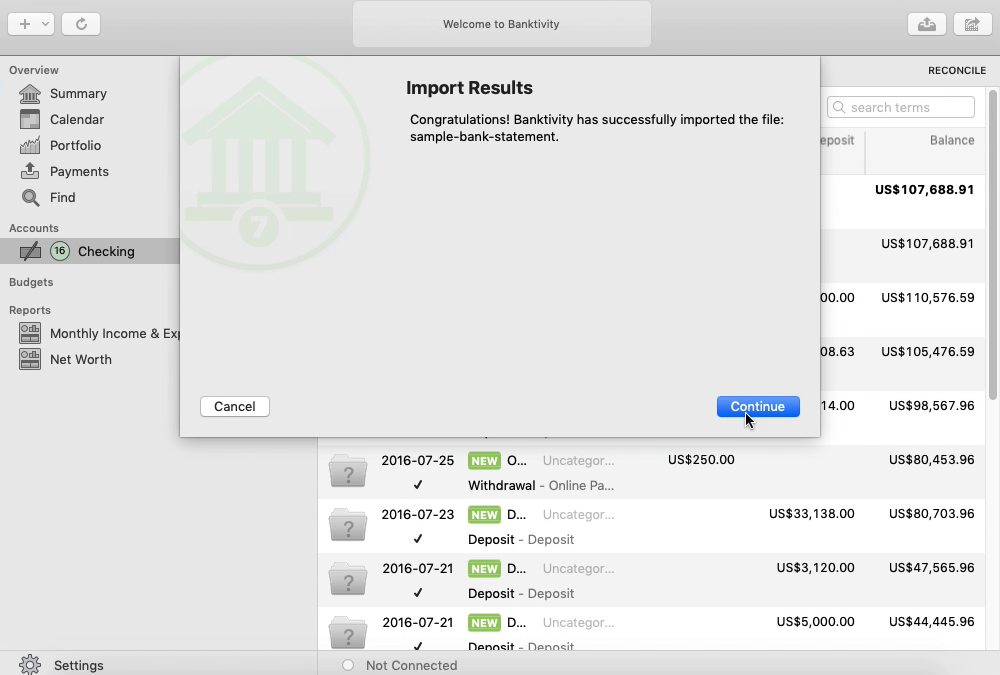
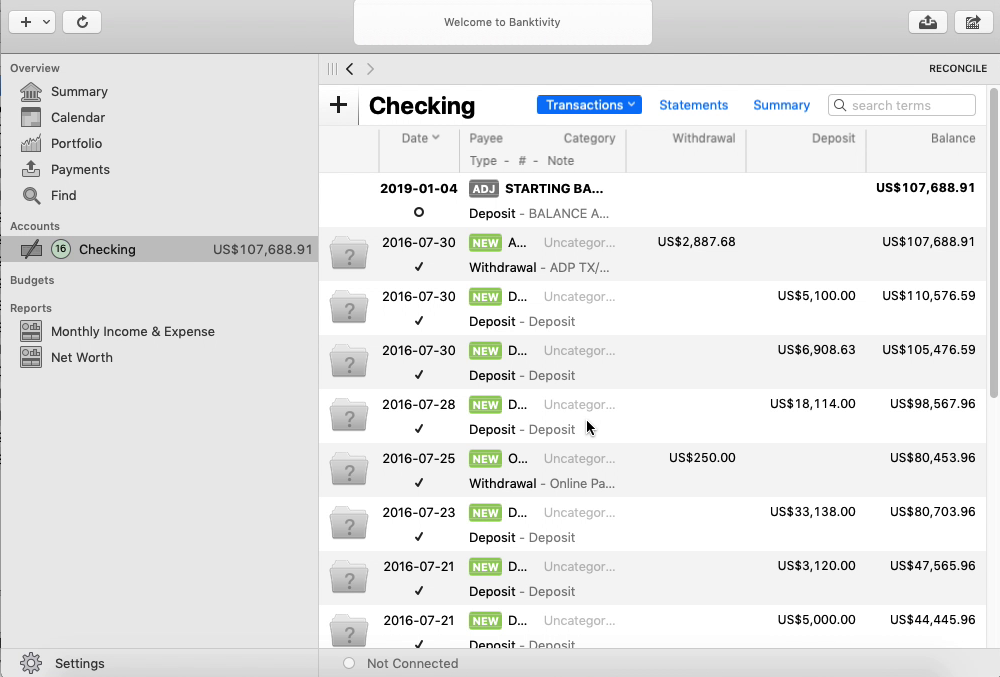
Pay attention that the Account name must match what you have in Banktivity. Because Banktivity imports directly in that account without asking anything. And if you don't have the account specified on the QIF file, this account will be automatically created. Now your transactions are imported. You can categorize, review, and delete them. They are already inside Quicken. Review transactions after import.
Learn More
Related articles
- Convert CSV/Excel files to OFX and import into Quickbooks Online, Xero, Microsoft Money
- How to Convert CSV to QFX Quickly and Easily
- Convert CSV/Excel to QIF and import into Quicken, Banktivity, MYOB #quicken
- What are OFX, QFX, QBO (Web Connect) files?
- How to Convert Bank Statement PDF to CSV
- Convert PDF to OFX
- Convert PDF to QFX and import into Quicken Classic