How to convert to Quicken compatible formats (QIF, QFX, CSV Mint)
See below which format your Quicken imports. Then convert your files to that format (QFX, QIF, or CSV Mint). If your Quicken imports both QIF and QFX, each format has trade-offs. The same applies to QFX and CSV Mint.
Use the ProperConvert app to convert your file to a format that works with Quicken.
Which file formats does Quicken import?
Quicken for Windows
- QFX (web connect) format (Quicken for Windows 2020 or later).
- QIF format (all Quicken for Windows versions).
Quicken for macOS
- QFX (web connect) format (Quicken for Mac 2020 or later).
- CSV Mint format (Quicken 2015 or later for Mac or macOS).
All Quicken versions are supported
- For Quicken for Windows, convert to the QIF or QFX format if you have the current Quicken version.
- For Quicken for Mac, convert to the QFX format if you have the current Quicken version.
- For older Quicken for Windows versions, convert to the QIF format.
- For older Quicken for Mac versions, convert to the CSV Mint format.
QIF files import easily into Quicken. Make sure to set your QIF target correctly. They let you supply categories and tags for each transaction. The ProperConvert app has a mapping interface to assign categories by payee name or manually. QIF files have fewer limits than QFX files. They do not identify financial institutions like QFX files do.
For QFX transactions, Quicken uses renaming rules to assign categories during import.
How to convert files to Quicken compatible format
Use the ProperConvert app to convert your CSV, Excel, PDF, OFX, QFX, QBO, QIF, MT940 files into QIF, QFX or CSV Mint files ready to import into Quicken.
QFX vs QIF vs CSV Mint: What are the main differences importing into Quicken?
QFX vs QIF for Quicken for Windows
- QIF is most likely better than QFX.
- Use QFX when you want to import into a previously imported account and do not use categories.
QFX vs CSV Mint for Quicken for Mac
- QFX is most likely better than CSV Mint.
- CSV Mint is great when moving from another app and you need to keep categories.
Specific details
- QIF supports categories (and subcategories) and tags. QFX does not. Quicken offers renaming rules to assign categories during import.
- CSV Mint supports categories and works on Mac only. It imports into a new account. Transactions can be moved to another account after import.
- QIF format for Quicken, Microsoft Money, and other software differ in structure. ProperConvert lets you pick the QIF variant by selecting the QIF target before converting.
- QIF import into Quicken before 2018 is not “officially supported.” Even so, QIF files import well for all account types. Follow the instructions on the converter help page.
- QFX format creates an “online services link” to account ID values in the QFX files. Use different account IDs when converting QFX files for different accounts.
- QFX files stop importing once your Quicken version is three years old. You must buy the upgrade or switch to QIF format.
For Quicken for Windows 2020+, QIF is somewhat easier to import than QFX. QFX is easier if you do not need categories during import.
- QFX can be imported by Quicken for Windows (up to three years old) and Quicken for Mac.
- QIF can be imported by older Quicken for Windows.
QIF format
What is the advantage of QIF files over QFX? QIF allows categories. Unlike QFX, Quicken does not need to “call home” during import. You do not need an active Internet connection. This is handy when you travel without always-on Internet but still need to work with transactions.
QIF format has many variants, make sure to select the correct QIF variant for your Quicken version or other personal finance or accounting software.
QIF is a great format for categories and tags. Quicken discouraged QIF until 2019, but all Windows versions import it fine. Since Quicken 2018, QIF is "officially" supported.
Quicken 2005-2017 for Windows must be at least the Deluxe version to import QIF files into bank or credit card accounts.
Quicken 2018-2020 for Windows imports QIF files fine.
Quicken for Mac 2015-2022 does not import QIF files. Quicken for Mac 2007 imports QIF files fine.
QIF format advantages
- Supports categories and tags.
- Works in almost all Quicken versions. For 2017 or earlier, you need at least the Deluxe edition.
- Works even if your Quicken for Windows is older than three years.
- Does not need the Internet to import.
- Investment transactions are supported by the converter.
- Select the correct QIF target (Quicken version) when you convert to QIF format.
QIF format disadvantages
- Until Quicken 2018, QIF was not "officially" supported. Various blocks were set to prevent QIF import. Even so, all Quicken for Windows versions do import QIF files.
- For Quicken 2017 or earlier, enter the account name and select the correct QIF target to create an importable QIF file.
- Duplicates are not checked during QIF import.
- Quicken for Mac does not import QIF files (except Quicken 2007 for Mac, which works only on very old Macs).
- Quicken Essentials for Mac does not import QIF files.
QIF Format Summary
QIF is a great format for importing transactions with categories and tags. Use the converter app to convert CSV and Excel files to QIF. Import into Quicken 2005-2023 for Windows. You can also create QIF files for Quicken 2007 for Mac and other apps like MS Money, YNAB, and NetSuite.
Key steps for a successful conversion from CSV to QIF:
- Check that expenses are negative and payments are positive. Some credit card companies supply CSV amounts the opposite way. Use the “Change +/-” button to reverse all signs in one click.
- Select the correct QIF target (which software are you importing into).
- Select the correct account type (BANK vs CCARD vs INVST).
- Enter the account NAME exactly as it appears in Quicken. Quicken reads the account name from the QIF file to locate the account. If not found, Quicken will prompt to create a new account.
- Date format is ignored when the QIF target is Quicken. Quicken expects one date format and the converter uses it.
If you have an Excel file (XLSX or XLS), the converter can open it directly. Close the Excel file first if it is open. You can also select transactions in Excel, copy them, and click Paste in the converter.
If you have a PDF file from your bank, use the converter to convert PDF files.
QFX (Web Connect) format
QFX files are Web Connect files and do not carry categories like QIF files. Quicken assigns categories after import using renaming rules. Users can also set them later. On Quicken for Mac, uncheck "Automatically improve quality of downloaded payee names and categories."
QFX format advantages
- Simpler import compared to QIF files.
- No need to map categories.
QFX format disadvantages
- No categories or tags.
- Internet is required during QFX import. Quicken checks the bank label online.
- Quicken account must be "disconnected" from direct online download for QFX import, then reconnected after.
- Investment transactions are not supported.
- QFX files stop working once your Quicken version is three years old.
Convert to the QFX (Web Connect) format
- Load a file you need to convert
- Click on the QBO/QFX/OFX tab on the right sidebar
- Set the file type "QFX (Quicken)""
Convert a CSV file into Quicken Web Connect format
Web Connect (QFX) format is a modified OFX format supported by Quicken and other software that supports OFX or QFX.
To import a QFX file into Quicken, click File, then Import, then Web Connect file. Select the QFX file using the file dialog.
To create a QFX file from CSV or Excel, use the ProperConvert app to convert CSV files to QFX format.
The converter detects your CSV file contents automatically. Click Review Mapping to adjust columns if needed. If you create the CSV file yourself, add column names on the first line (date, amount, payee, memo). This helps the converter assign columns correctly.
About INTU.BID, bank id, and account id on the Settings tab: you can leave them as is, pick another supported bank, or enter your own values. Quicken uses INTU.BID to show the bank name on the import screen. It then lets you select an existing account or create a new one. The INTU.BID value does not need to match your real bank. You can import QFX files marked as from one bank into any account in Quicken. Just choose a bank supported by Quicken using the Lookup button and finish the import.
After a successful import, Quicken links the INTU.BID, bank id, and account ID to the Quicken account. This is called "linked online services." You can delete these links by editing the account in Quicken and clicking the Online Services tab. Do this if you need to import QFX files with different INTU.BID, bank id, or account id values.
During QFX import, Quicken calls home using the Internet. Make sure your firewall allows it through. Quicken then links the bank details in the QFX file to the selected account. If Quicken finds a matching account, it imports data there. Otherwise, it shows a dialog to select an “unlinked” account or create a new one.
If you have an Excel file instead of CSV, open it directly in the converter. Or open it in Excel, select all (CTRL+A), and copy to clipboard (CTRL+C). Switch to the converter and click Paste from Clipboard. This saves you from creating a CSV file first. This also works with other spreadsheet software that supports copy and paste.
QFX format gives each transaction a unique ID. Quicken uses it to skip already-imported transactions. But you may spot errors in your CSV and need to fix and re-import. Even if you delete the transaction in Quicken, it refuses to import it again.
To fix this, the converter can create new unique IDs each time you save the QFX file. This option is on by default. You can also keep IDs the same if needed.
If you have an Excel file (XLSX or XLS), the converter can open it directly. Close the Excel file first if it is open. You can also select transactions in Excel, copy them, and click Paste in the converter.
CSV Mint format
- Quicken 2015+ for Mac only.
- Supports categories.
- Imports into a new account. Select transactions and drag them to another account afterward.
Quicken for Mac 2015+ can import "CSV Mint" files into a new account. It is easy to drag transactions in Quicken for Mac from one account to another. Select multiple transactions and drag them onto another account in the sidebar.
A CSV Mint file is a regular CSV file with a specific layout that Quicken expects. Any random CSV or Excel file will not work. You must format it to match the CSV Mint column layout.
You can get a sample CSV Mint file from Mint.com by exporting transactions. Look at how the data is set up. Then format your CSV or Excel file to match.
ProperConvert does this for you. It takes your CSV or Excel file, lets you remap columns, and saves it as a CSV Mint file ready for Quicken for Mac 2015+.
The nice thing about CSV Mint files is that they allow the category column to be supplied (but not a subcategory).
“.OFX” or “.QFX” for Quicken?
QFX (web connect) is the most confusing of all transaction file types.
- QFX files are "Quicken OFX" files
- QFX files are not OFX files
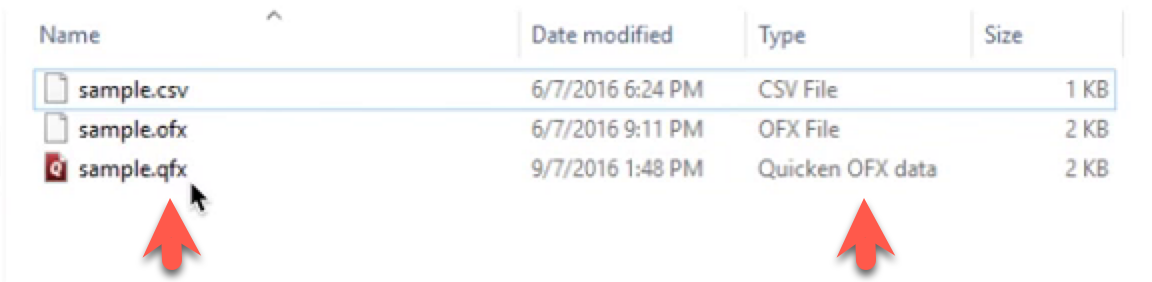
OFX files have a .ofx extension. QFX (Web Connect) files have a .qfx extension. When you install Quicken, it registers .qfx files as "Quicken OFX files." This is confusing. The .qfx file is not an OFX file. QFX is a Quicken Web Connect file. Quicken does not import OFX. It only imports .qfx files. So when you convert CSV to QFX with ProperConvert, you get a .qfx file. In File Explorer it shows as "Quicken OFX data file." Do not let that label confuse you.
QFX files are not OFX files
When you install Quicken, you will see QFX files labeled as "Quicken OFX" files. This is a misunderstanding. Quicken does not import OFX files at all. It imports only QFX files. Also, Quicken must be no older than three years to import QFX. The video below explains the confusion about QFX and OFX files.
The short answer for OFX or QFX: QFX
Why? Short answer: Quicken does not import OFX files (even if it says it does).
Quicken imports QFX files (not “.OFX”) and calls them “Quicken OFX files.” In reality, Quicken imports only QFX files. QFX files are extended OFX files. They follow the OFX spec but include extra fields that Quicken requires.
Alternatives for QFX format for Quicken
- For Quicken for PC, QIF is a good alternative. Quicken 2005-2023 imports correctly prepared QIF files fine.
- For Quicken Classic for Mac, you can import CSV Mint files. The converter turns your Excel or CSV files into CSV Mint files.
What about the QXF format?
The QXF format adds to this confusion. It looks very similar to QFX. Your autocorrect may even switch QXF to QFX as you type, so a support question may get an unexpected answer. QXF is not for transaction import. It is for data transfer. Importing a QXF file replaces your whole dataset in Quicken.
Backup before any import
Safety first: make sure to backup your Quicken file before any import: QFX, QIF, QXF or even OFX.
Learn More
- QBO - What is QBO (web connect) file format?
- QFX - What is QFX file/format and how to open it?
- OFX - What Is OFX File Format and How to Open it?
- QIF - What is QIF file/format and how to open it?
Related articles
- Convert CSV/Excel files to OFX and import into Quickbooks Online, Xero, Microsoft Money
- How to Convert CSV to QFX Quickly and Easily
- Convert CSV/Excel to QIF and import into Quicken, Banktivity, MYOB #quicken
- What are OFX, QFX, QBO (Web Connect) files?
- How to Convert Bank Statement PDF to CSV
- Convert PDF to OFX
- Convert PDF to QFX and import into Quicken Classic